Overview
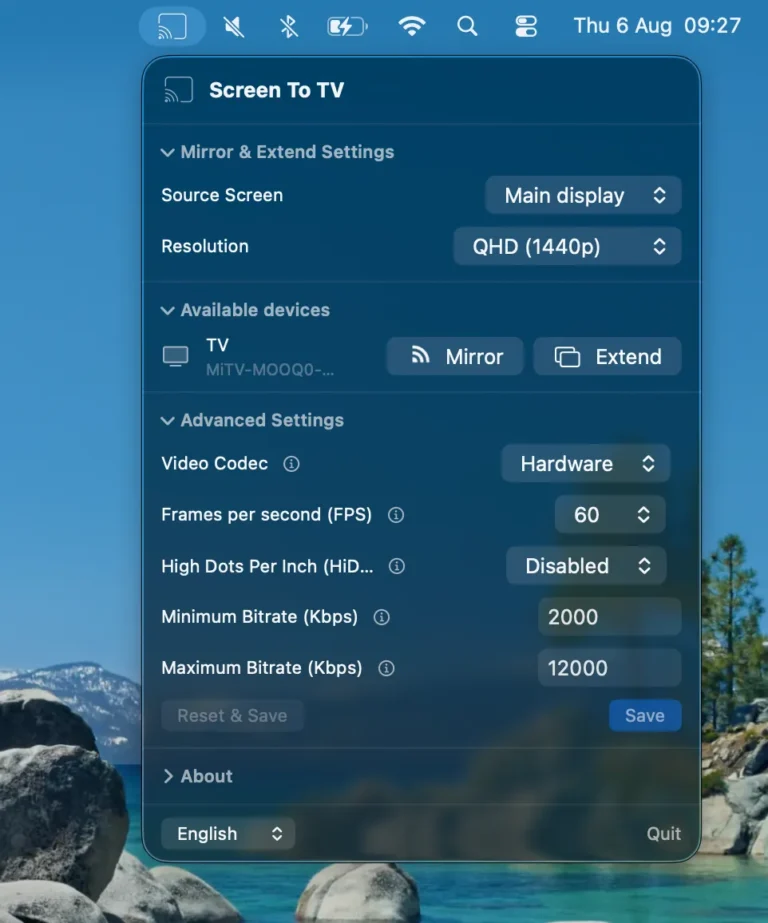
Screen To TV lives quietly in your Mac’s menu bar — no dock icon, no window to manage, nothing cluttering your desktop. Click the menu bar icon any time to mirror or extend your screen, adjust settings, or see your available devices, all from one simple dropdown.
Mirror & Extend Settings
This is where you choose what to send to your TV and how it should look. Pick a source screen, choose a resolution, and connect to any available device — mirroring or extending takes just one click.
Source Screen
If your Mac is connected to more than one display, use this dropdown to choose exactly which display gets mirrored or extended. This is especially useful if you work with an external monitor alongside your Mac’s built-in display and want to pick precisely which one to send to the TV.
Default value: Main display
Resolution
Choose the resolution Screen To TV should send to your TV. Higher resolutions look sharper on larger screens but need more bandwidth and processing power — if you notice lag or stutter, try a lower resolution first.
- HD (720p)
- Full HD (1080p)
- QHD (1440p)
- 4K / UHD (2160p)
Default value: Full HD (1080p)
Available Devices
Screen To TV automatically scans your network and lists every compatible device it finds — TVs, streaming boxes, and projectors alike.
Next to each device, tap Mirror to duplicate your screen, or Extend to use it as a second display.
Advanced Settings
These settings let you fine-tune how Screen To TV streams your screen, trading off image quality against smoothness and responsiveness.
Most people never need to touch them — the defaults work well out of the box — but they’re here if you want to adjust the experience for your specific setup.
Video Codec
Choose between hardware encoding (CPU-efficient) or software encoding (often better quality at the same bitrate).
Hardware encoding is the recommended default for most users: it uses your Mac’s dedicated media engine, keeping CPU usage and battery drain low while delivering smooth, low-latency streaming. Software encoding can offer a quality edge at the same bitrate, but at a higher CPU cost — best reserved for a plugged-in Mac with power to spare.
Default value: Hardware
Frames Per Second (FPS)
Number of frames captured and streamed per second. A higher value gives smoother motion, at the cost of higher CPU/network load.
60 FPS is a solid default for everyday use — presentations, browsing, video playback. Bump this up to 120 FPS mainly for fast-moving content like games or quick-scrolling video, provided your network can comfortably handle the extra load.
Default value: 60
High Dots Per Inch (HiDPI)
Enables a crisp (@2x) rendering instead of a blurry upscaled display. Only useful in Extend mode.
Turn this on when extending to a 4K or high-resolution screen to keep text and icons sharp, just as they’d appear on a native Retina display. It has no effect in Mirror mode, since that simply duplicates your existing screen as-is.
Default value: Disabled
Minimum Bitrate (Kbps)
Target minimum video bitrate. A higher value stabilizes quality but leaves less headroom on an unstable network.
Raise this on a strong, stable Wi-Fi network to keep quality consistent. On a busier or less reliable network, a lower value gives Screen To TV more room to adapt and helps avoid stutter or dropped frames.
Default value: 2000
Maximum Bitrate (Kbps)
Maximum video bitrate. A higher value improves potential quality, at the cost of higher network usage.
This sets a ceiling so Screen To TV doesn’t use more bandwidth than your network can handle. If other devices share your Wi-Fi, keeping this moderate helps avoid slowing everything else down.
Default value: 12000
About
This section brings together your account details and technical information — handy for managing your subscription or reaching out for support.
- Your UUID: your Mac’s unique identifier — useful to include with a bug report or support request.
- Your Email: we encourage you to add your email address so we can keep you informed about important updates.
- Your Subscription: type, status, and expiration date.
- License Key: this is where you enter your License Key after purchasing on our website, unlocking full access to Screen To TV.
- Our Website: quick link back to screentotv.com for more information.
Requirements
Here’s what you’ll need on both ends to get started with Screen To TV.
The source: Your Mac
Any Mac computer (iMac, MacBook Pro/Air/Neo, Mac Studio, Mac mini…) with macOS 14+.
The destination: Your Android TV*
*You can Mirror and Extend your screen to any Google Cast-enabled device.
Here is a non-exhaustive list of the most widely used home devices equipped with Android TV / Google TV or Google Cast / Chromecast built-in:
Smart TVs (Google TV / Android TV OS)
Many major television brands run Android TV or Google TV natively, providing both the app interface and built-in Google Cast.
- Xiaomi / OnePlus / Realme TVs: Running Android TV / Google TV interfaces.
- Samsung: supported on 2024, 2025, and 2026 models with built-in Google Cast (Tizen OS firmware v2115 or later required for 2024/2025 models).
- Sony (Bravia / Google TV Series): Almost all modern Sony smart TVs run Google TV with native Chromecast support.
- TCL: Offers a large lineup of Google TV-powered smart models.
- Hisense: Runs Google TV across its budget and premium ULED display lineups.
- Philips: Integrates Google TV on many of its Ambilight and OLED Smart TVs.
- Other brands such as Sharp, Blaupunkt, or other manufacturers offering models with native Android TV / Google TV are also compatible — check your TV’s interface or model specifications.
Media Streaming Boxes & Dongles
These plug directly into your TV via HDMI and provide full Google TV / Android TV operating systems with built-in Google Cast.
- Google TV Streamer / Chromecast with Google TV: Google’s flagship streaming hardware lineup.
- onn. 4K & 4K Pro Streaming Box (Walmart): Budget-friendly Google TV streamers.
- NVIDIA Shield TV / Shield TV Pro: Renowned for high-performance Android TV gaming, AI upscaling, and home media server capabilities.
- Xiaomi TV Box S & TV Stick Series: Offering portable and affordable Android TV/Google TV setups.
- Nokia Streaming Box Series: Widely popular across European markets.
Smart Projectors
Modern portable and home theater projectors increasingly ship with Google TV / Android TV built directly into the hardware.
- Anker Nebula Series: Popular portable models like the Capsule 3, Mars 3, and Cosmos series feature official Google TV / Android TV integration.
- XGIMI Projectors: Models like the Horizon, Halo+, and Elfin series run native Android TV / Google TV with built-in Chromecast.
- BenQ & ViewSonic Smart Projectors: Selected home theater lines come equipped with Android TV HDMI dongles or native OS integration.
