
What You’ll Need
- A Mac — no special setup required.
- A TV, streaming box, or set-top box with Google Cast support — most Android TV, Google TV, and Chromecast devices have this natively.
- Both devices connected to the same local network (Wi-Fi or Ethernet).
- The Screen To TV app installed on your Mac.
The Steps
- Download and open Screen To TV on your Mac.
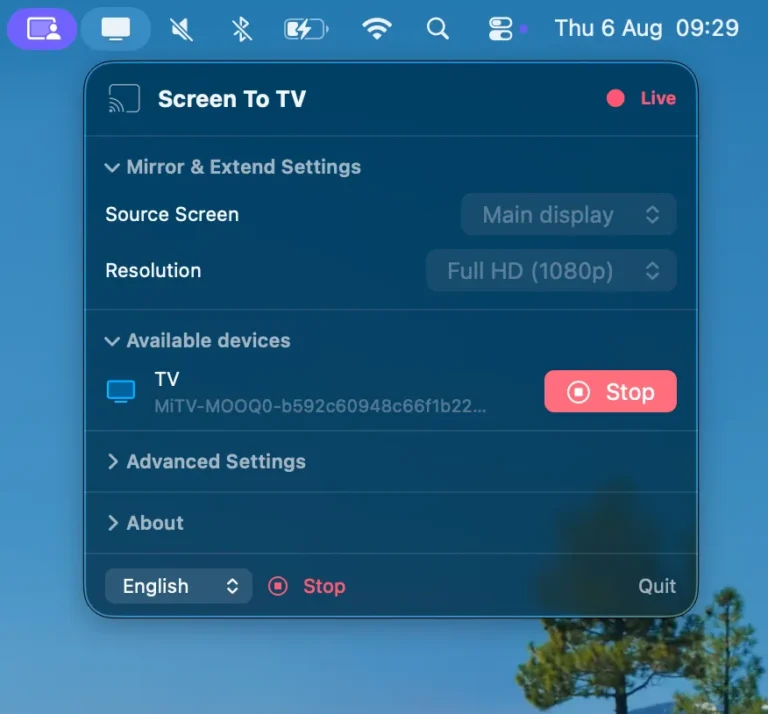
- The app automatically scans for available Google Cast devices on your network.
- Select your TV, box, or dongle from the list.
- Choose “Mirror” for an identical copy, or “Extend” for an independent second workspace.
- Done — the image shows up on the TV within seconds.
For the Best Quality
- Use 5GHz Wi-Fi if your router supports it — it’s usually less crowded than 2.4GHz.
- Move closer to the router, or avoid thick walls between the Mac and the TV.
- Close bandwidth-heavy apps during the session (downloads, cloud backups).
- If you’re using Screen To TV Lite, consider upgrading to Pro!
If Your TV Doesn’t Show Up in the List
- Double-check both devices are on the same Wi-Fi network, not one on the main network and the other on a guest network.
- Some routers isolate devices from each other (“client isolation” / “AP isolation”) — turn that off if needed, or check your router’s documentation.
- Restart the TV, the box, and the app if the list stays empty after a few seconds.
- Ensure that Screen To TV has the “Local Network” permission.
Does This Work Away From Home Too?
Yes, as long as the Mac and the TV (or box) are on the same Wi-Fi network — whether that’s at home, at the office, or in a hotel room with a Google Cast-compatible TV. The one requirement stays the same everywhere: both devices need to share the same local network, not just the same internet connection.
Mirror or Extend: How to Choose in Practice
When connecting, choose “Mirror” if you want to show other people exactly what’s on the Mac’s screen — watching a video together, for instance. Choose “Extend” if you’d rather keep certain windows private (notes, inbox) while displaying something else on the TV: the TV then becomes an independent second workspace, not just a copy. This is covered in more depth in our dedicated article on extending your screen.
Granting Screen Recording Permission on macOS
The very first time you use it, macOS will show a permission prompt: any app that captures the screen — Screen To TV included, like any other — needs “Screen Recording” access under system settings. This is a standard macOS safeguard, not something specific to the app. You only need to approve it once; the permission then stays in place for future sessions, unless you manually revoke it under System Settings > Privacy & Security.
Frequently Asked Questions
Do I need a Google account or any sign-up?
No — Screen To TV detects Google Cast devices on the network without requiring an account on either the Mac or the TV.
Does this work with an Apple TV?
No: Apple TV uses the AirPlay protocol, not Google Cast. Screen To TV targets TVs, boxes, and dongles with Google Cast support (Android TV, Google TV, Chromecast).
Does the connection stay stable if I move to another room with my laptop?
As long as you stay on the same Wi-Fi network and within reasonable range of the router, the connection holds. Beyond that, it’s best to reconnect from the app.
The Bottom Line
Mirroring a Mac to an Android TV isn’t technical once you know the right settings: download Screen To TV, pick your device, and you’re done.
Ready to take your Mac experience to the next level?
Download Screen To TV and try it on your own setup!
